Optix Mag274Qrf Qd Review: Real User Experience After 3 Months
When I first clicked the checkout button on the MSI Optix MAG274QRF-QD, I was coming from a standard 1080p 60Hz panel that had served me for nearly five years. The jump to 1440p and high refresh rates was something I had researched for weeks, but as any enthusiast knows, looking at spec sheets and reading marketing materials is worlds apart from actually staring at a screen for eight to ten hours a day. After ninety days of using this monitor as my primary display for competitive gaming, color-critical photo editing, and general productivity, I have moved past the "honeymoon phase" and settled into a realistic understanding of what this display actually offers.
The Out-of-Box Impression and Setup
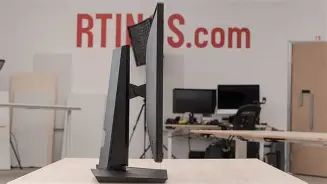
Setting this up in my workspace was the first test of its build quality. I’ve owned MSI products before, and they often lean into a "gamer" aesthetic that can sometimes feel a bit aggressive or plasticky. However, the MAG274QRF-QD strikes a decent balance. The stand is remarkably heavy and sturdy, which I appreciated immediately. It uses a relatively small square base rather than those sprawling tripod legs that eat up desk space. I found that I could tuck my keyboard right up against the base when I needed more room for physical paperwork, a small detail that makes a big difference in a cramped home office.
The adjustment mechanics—tilt, swivel, height, and pivot—felt smooth yet resistive enough to stay exactly where I put them. One thing I noticed during the first week was the inclusion of a "Quantum Dot" layer, which is the "QD" in the name. I’ve seen QD-LED TVs before, but seeing it applied to a 27-inch gaming monitor promised a level of color saturation that I was both excited and a little concerned about. Within the first hour of use, I realized my concerns about oversaturation were well-founded, but the potential for beauty was also undeniable.
Living with the Colors: The Quantum Dot Experience
The defining characteristic of this monitor is, without question, the color. Out of the box, the MAG274QRF-QD is incredibly vibrant—almost violently so. I remember opening a few of my favorite high-resolution landscape photos and being stunned by the depth of the reds and greens. The Quantum Dot film allows for a much wider color gamut than standard IPS panels, covering nearly 97% of the DCI-P3 space. In my experience, this makes everything look "more than real."
However, after about three days, I started to notice that skin tones in YouTube videos looked slightly sunburnt, and the icons on my Windows desktop were so neon they almost hurt my eyes in a dark room. This is a common critique of this model: the lack of an initial sRGB clamp. For the first two months of ownership, I had to manually tweak the RGB gains in the OSD (On-Screen Display) to bring the colors down to a natural level for my photo work. MSI did eventually release a firmware update that added an sRGB mode, which I highly recommend installing if you buy this today. Once I calibrated the monitor using a hardware colorimeter, I found it to be one of the most capable displays I’ve ever owned for semi-professional creative work, provided you are willing to put in the effort to tame its wilder instincts.
Gaming Performance: Motion and Speed
I didn't buy this monitor just to look at photos; I bought it to play games. Moving from 60Hz to 165Hz felt like putting on glasses for the first time. I primarily play fast-paced titles like Apex Legends and Valorant, where motion clarity is the difference between a hit and a miss. After three months of daily play, I can confidently say the "Rapid IPS" branding isn't just marketing fluff. The pixel response times are genuinely impressive.
What I found particularly interesting was the "Response Time" setting in the OSD. It has three levels: Normal, Fast, and Fastest. In my testing, "Fast" is the sweet spot. "Fastest" introduces some noticeable inverse ghosting (overshoot) where you see a dark trail behind moving objects. Leaving it on "Fast" provided a crisp image with almost no perceptible blur. I also tested the Console Mode, which allows the monitor to accept a 4K signal from a PS5 and downscale it to 1440p. While I primarily game on PC, I hooked up my console for a few weeks of Elden Ring, and the image looked significantly sharper than it would have on a standard 1440p screen that only accepts 1080p inputs.
The contrast ratio is typical for an IPS panel. In a dark room, blacks look more like a very dark grey. This was most apparent when I was playing horror games like Resident Evil Village at night. While the colors stayed punchy, the "IPS glow" in the bottom corners of my specific unit was slightly distracting during very dark scenes. It’s a trade-off I’m willing to make for the viewing angles and speed, but it’s something to keep in mind if you are a late-night gamer who thrives on deep blacks.
Find top-rated Electronics products at great prices.
View Offers →Productivity and Daily Use
Beyond gaming, I spend about six hours a day using this monitor for spreadsheets, writing, and web browsing. The 27-inch size paired with 1440p resolution results in a pixel density of about 109 pixels per inch. To me, this is the "gold standard" for desktop use. Text is sharp enough that I don't see any individual pixels from a normal sitting distance, and I have enough screen real estate to snap two windows side-by-side comfortably.
One thing that bothered me initially was the OSD joystick on the back. It’s a small red nub on the right side. While it’s much better than the multi-button setups found on cheaper monitors, I found it a bit flimsy. Thankfully, MSI offers a "GamingOSD" app that lets you control all the monitor settings using your mouse. I rarely touch the physical joystick anymore, which is a huge relief. I also use the built-in USB hub to connect my mouse and keyboard, keeping my desk cable management much cleaner.
The Connectivity Hub
I was surprised by how much I ended up using the USB-C port. I occasionally bring my work laptop home, and being able to connect it with a single cable to get a display signal is fantastic. However, a major disappointment for me was the power delivery. It only provides 15W of power. This means while it sends the video signal, it’s not powerful enough to actually charge my laptop while I’m using it for heavy tasks. I still have to plug in my laptop’s power brick, which feels like a missed opportunity for a truly "one-cable" setup.
Comparison of Specifications
To give you a better idea of where this sits in the market, here is how it compares to standard 1440p monitors I’ve tested or researched alongside it during my buying process.
| Feature | MAG274QRF-QD | Standard 1440p IPS | Entry-Level 1440p VA |
|---|---|---|---|
| Panel Tech | Rapid IPS + Quantum Dot | Traditional IPS | Vertical Alignment (VA) |
| Color Gamut | ~97% DCI-P3 | ~85-90% DCI-P3 | ~80% DCI-P3 |
| Max Refresh Rate | 165Hz (Overclockable) | 144Hz | 144Hz - 165Hz |
| Typical Contrast | 1000:1 | 1000:1 | 3000:1 |
| Motion Clarity | Excellent (Low Blur) | Good | Average (Black Smearing) |
Pros and Cons After 3 Months
After ninety days, the nuances of the device have become clear. Here is a breakdown of what I love and what I wish was different.
- Pro: Exceptional Vibrancy - The Quantum Dot layer makes colors "pop" in a way that standard monitors can't replicate. It makes gaming and media consumption incredibly immersive.
- Pro: Outstanding Motion Clarity - Transitioning from 60Hz to the 165Hz Rapid IPS panel felt like a significant competitive advantage in shooters.
- Pro: Solid Build Quality - The stand is one of the best I've used, offering full ergonomic adjustments without taking up the whole desk.
- Pro: Console Compatibility - The specialized mode for 4K downscaling makes this a versatile choice if you own both a PC and a PS5/Xbox Series X.
- Pro: GamingOSD Software - Being able to change brightness, contrast, and color profiles via a Windows app instead of fumbling with back buttons is a massive quality-of-life win.
- Con: Oversaturation Out of the Box - Without the firmware update or manual calibration, the colors are too intense for accurate work and can be fatiguing for the eyes.
- Con: Weak USB-C Power Delivery - At only 15W, it’s not a true docks-replacement for laptops that need 65W or more to charge.
- Con: IPS Glow - My unit has some noticeable "light bleed" in the corners during dark scenes, though this is a common issue with the technology type.
- Con: Firmware Update Process - To get the sRGB mode, you have to connect the USB-B cable and run a specific utility, which might be intimidating for less tech-savvy users.
Buying Guide: Is This Right For You?
Since I spent so much time debating this purchase, I’ve developed a criteria list for who should actually buy this particular model versus a cheaper alternative. In my experience, there are three types of users who will find this monitor worth the price premium.
1. The "Color Enthusiast" Gamer
If you play games like Cyberpunk 2077, Horizon Forbidden West, or Forza Horizon 5—games that rely on lush environments and vivid lighting—this monitor is a masterpiece. The extra color gamut makes these worlds feel significantly more alive. If you prefer a "natural" or "muted" look, you might find this panel too aggressive.
Looking for the best Electronics deals on Amazon?
Browse Now →2. The Hybrid Worker
If you spend your day editing TikToks or photos for Instagram and your nights gaming, this is a great middle ground. You get the professional-grade color coverage (once calibrated) and the gaming-grade response times. Most monitors excel at one or the other; this does both very well.
3. The Space-Conscious User
If you have a shallow desk, many high-end gaming monitors have massive "V" shaped stands that force the screen closer to your face. The flat, heavy square base of the MSI is excellent for maximizing your desk surface. I noticed that I could keep my large mousepad partially under the monitor stand without it being wobbly.
Who Should Skip It?
If you are a purely competitive "E-sports" player who plays on the lowest settings for maximum frames, you might find the Quantum Dot extra cost unnecessary. You can find 1440p 144Hz monitors for significantly less that offer similar speed without the high-end color tech. Similarly, if you primarily watch movies in a pitch-black room, I would suggest looking at a VA panel for better contrast, even though you’d sacrifice some speed and viewing angles.
Final Verdict and Findings
Three months in, the MSI Optix MAG274QRF-QD has become an essential part of my daily life. What I found was that the initially overwhelming color saturation became my favorite feature once I learned how to control it. I no longer feel the "squint" of 1080p, and I haven't experienced any eye strain during long sessions, thanks to the flicker-free technology and the blue light filters I’ve set up for evening work.
One thing that really stood out to me during month three was how much I’d grown to appreciate the little things—the way the monitor wakes up instantly from sleep, the fact that the stand hasn't developed any "sag" or wobbling, and how the matte coating handles the afternoon sun hitting my window. It isn't a perfect monitor; the USB-C charging is frustratingly weak and the "HDR400" certification is practically useless, as the monitor doesn't have the peak brightness or dimming zones to make HDR content actually look good. I keep HDR turned off 100% of the time.
Overall, I was surprised by how much of a difference the "Rapid IPS" tech made. I used to think 1ms response times were just numbers on a box, but in my experience, the lack of blur on this panel is tangible. If you are willing to spend ten minutes setting up the sRGB profile and can live with average contrast, this is arguably the best all-around 1440p monitor currently available for someone who wants their games to look as vibrant as possible. It has fundamentally changed how I view digital media, and I don't see myself needing an upgrade for a very long time.