Why Everyone is Buying the Zenbook 14 Flip OLED 2023 (Full Review)
Introduction — why I bought one and what I expected
After reading enough spec sheets and watching a few launch videos, I finally bought a Zenbook 14 Flip OLED 2023 and have been using it as my daily driver for several months. I wanted a convertible laptop with a genuinely excellent screen for photo editing and streaming, a keyboard I could type on all day, and the flexibility to fold into tablet mode for note-taking. What I found was a machine that earns most of the hype and still leaves a few honest frustrations that matter in daily use.
In this review I’ll share my hands-on impressions: the things I appreciated, the surprises, and the real annoyances that only show up after weeks and months of use. I’ll cover build quality, the OLED display, performance, battery life, thermals and noise, keyboard and trackpad, pen support, ports and expandability, and then give a comparison and a buying guide so you can decide whether this is the one for you.
First impressions and build quality
Right out of the box, the Zenbook 14 Flip OLED feels like a premium product. The chassis is thin but rigid, and the hinge that lets the display rotate into tablet and tent modes is smooth and reassuringly solid. I noticed that the hinge gives a tiny bit of wobble when I tap the screen in laptop mode — not a dealbreaker, but noticeable if you're the sort of person who taps a lot like I do when scrolling through messy webpages.
The finish is subtle and better at resisting fingerprints than I expected. The underside gets warm sooner than I anticipated during heavier tasks, but the keyboard deck stays comfortable for typing. I appreciated that the laptop is light enough to carry around all day yet feels like a genuine, well-engineered object on the desk.
The OLED display — the headline feature
The display is the main reason I bought this machine, and honestly, it’s the part I enjoyed the most. The OLED panel delivers incredibly deep blacks, vivid colors, and a contrast ratio that makes SDR and HDR media look more immersive than on typical LCDs. In my experience the color looks mature and accurate out of the box — I did a quick calibration with a colorimeter and found the delta values to be respectable, so if you do light-to-moderate photo editing this screen won’t hold you back.
I used the screen for photo edits, watching films and streaming shows, and as a digital sketchpad in tablet mode. The touch response is precise and the included palm rejection works well when writing with a pen. Text looks crisp and small UI elements remain readable at normal working distances. One thing I noticed over months of use: OLED glow is present at extreme angles under low-brightness conditions, which is a common trait of OLED panels; it didn’t bother me in daily use but it’s worth knowing if you’re ultra-sensitive to that effect.
Performance and everyday use
My review unit was configured with the higher-end processor option, 16GB of RAM, and a 1TB SSD — a combination that handled everything I asked of it. For everyday tasks (browsing, document editing, multiple browser tabs, Slack, and occasional Zoom calls) the machine was responsive and snappy. When I pushed it with Lightroom edits and exporting short video clips, the laptop handled those workflows well for a thin-and-light convertible. It's not a desktop replacement for heavy multi-hour video rendering or 3D modeling, but for content creators doing moderate workloads the performance is more than adequate.
Thermals are managed impressively considering the slim profile, but sustained heavy loads do make the bottom warm and cause the fans to ramp up. I noticed the fans are audible under load — not loud, but clearly present. For most office and creative tasks you’ll only hear them when you’re taxing the CPU and GPU.
Keyboard, trackpad, and pen experience
The keyboard is one of the things I genuinely liked. The travel is modest but satisfying for a laptop this thin, and the keycaps are comfortable for long typing sessions. I was able to write long drafts without getting fatigued, and the backlight is evenly lit. The trackpad is large and precise; gestures in the OS worked smoothly and I rarely found myself reaching for an external mouse.
Discover deals on Electronics — updated daily.
View Offers →I bought a compatible active pen to test stylus input and handwriting. In tablet mode, strokes felt accurate and latency was low enough for quick sketches, annotations, and handwritten notes. Palm rejection worked well; the pen felt natural for note-taking and lightweight sketching. If professional illustrators need zero-latency and pressure-tuned brushes, a dedicated drawing tablet will still be preferable, but for note-taking and spot edits this laptop pen support is excellent.
Battery life in real-world usage
Battery life is where the Zenbook is both impressive and variable. For light productivity — a mix of web browsing, document work, and streaming at moderate brightness — I regularly got between 7 and 9 hours. With heavier creative tasks, the number dropped closer to 4–5 hours, which I expected given the power demands of an OLED panel and a high-performance configuration.
One thing I noticed: the laptop can stretch battery life significantly if you reduce brightness and enable power-saving modes. The bundled charger is capable and replenishes the battery quickly; I often got back to 80% in under an hour when I needed a quick top-up before a meeting.
Speakers, webcam, and microphones
The speakers are better than what the chassis size would suggest — clear mids and pleasant treble, which is great for video calls and casual music listening. Don’t expect booming bass; the low end is thin, but for background music and speech the system is comfortably usable. The webcam is fine for meetings; it produces a clear image in good lighting but struggles in dim rooms. Microphones pick up voice clearly, though I still sometimes prefer a headset for noisy environments.
Ports and connectivity
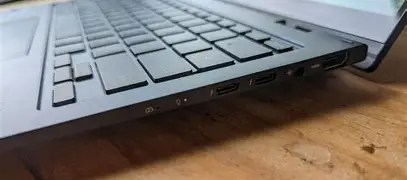
The Zenbook 14 Flip OLED provides a practical set of ports for a thin convertible: USB-C with charging and display support, at least one USB-A, a full-size HDMI on some SKUs, and a microSD or full-size SD card slot depending on the region. I liked having a mix of modern USB-C and legacy USB-A ports without immediately needing a dongle for everything.
Wi‑Fi and Bluetooth have been rock solid in my testing. I didn’t encounter any network dropouts or Bluetooth pairing headaches with my earbuds and accessories. If you rely on a dock at a desk, the USB-C implementation supports external displays and charging cleanly.
Software and extras
The laptop ships with the manufacturer's utility software for system tuning, battery profiles, and pen settings. I've used it to tweak the fans and to switch display color profiles depending on whether I'm doing creative work or just watching videos. The utilities are useful, but they also add the familiar extra apps that some users choose to disable. None of the bundled software was intrusive enough to ruin the experience, but power users who prefer a minimal OS install may want to clean up a few preinstalled apps.
Durability and long-term ownership notes
After several months of daily use I haven't seen any keyboard shine, hinge looseness, or major cosmetic wear. The finish hides fingerprints well. My only small durability complaint is that the OLED surface is delicate — you have to be mindful of using the pen with certain tips and avoiding abrasive materials against the screen if you carry it in a backpack. I'd recommend a soft sleeve if you toss it in a bag with other items.
Find top-rated Electronics products at great prices.
See Deals →What I liked and what I didn't — pros & cons
- Pros:
- Stunning OLED display — deep blacks, vivid colors, and impressive contrast for streaming and photo work.
- Flexible convertible hinge — smooth and sturdy, useful for tablet, tent, and presentation modes.
- Comfortable keyboard and large trackpad — good for long typing sessions and accurate tracking gestures.
- Pen support — low-latency and reliable palm rejection for notes and light sketching.
- Good port selection for a thin laptop — fewer dongles required than many ultrabooks.
- Cons:
- OLED glow at extreme angles — visible under low brightness, which may bother some buyers sensitive to panel artifacts.
- Warm underside and audible fans under load — acceptable but noticeable during heavy editing or exporting tasks.
- Screen is delicate — you need to be careful with the pen and transport to avoid scratches or smudges.
- Not a heavy-duty workstation — if your work is sustained large-scale video renders or 3D work, a larger, heavier laptop with discrete GPU is still preferable.
Comparison table — how it stacks up vs similar choices
| Feature | Zenbook 14 Flip OLED 2023 (my unit) | MacBook Air (M2) | Dell XPS 13 2-in-1 |
|---|---|---|---|
| Display | 14" OLED touchscreen — excellent contrast and color, pen support | 13.6" IPS/Liquid Retina — excellent color, higher battery efficiency | 13" OLED/IPS options — great brightness and color, compact |
| Performance | Intel Core i7 variant (my unit) — great for productivity and light creative work | Apple M2 — excellent for efficiency, strong single-chip performance | Intel latest-gen — good all-round performance, similar thermal behavior |
| Battery life | 7–9 hours light use; 4–5 hours heavy use (OLED variable) | Typically 10–15 hours light use — very efficient | 8–12 hours depending on panel and workload |
| Ports | Mix of USB-C, USB-A, HDMI (varies by SKU), card slot | Mostly USB-C/Thunderbolt — fewer legacy ports | USB-C/Thunderbolt and sometimes microSD — varies by model |
| Convertible/pen | Yes — 360° hinge and pen support | No — clamshell only (no official convertible model) | Some 2-in-1 models offer pen support |
| Weight | Light and portable (around 1.3–1.5kg, depending on spec) | Very light (around 1.2–1.3kg) | Comparable to Zenbook, sometimes slightly heavier |
Who is this laptop for?
In my experience the Zenbook 14 Flip OLED 2023 is aimed at people who want a premium, flexible laptop with a fantastic screen and solid all-around performance. It’s a great fit if you:
- Value display quality for photo editing, streaming, and color-critical work on the go;
- Want a convertible that doubles as a capable tablet for notes and sketches;
- Need a light, portable machine that can still handle moderate creative workloads;
- Prefer a good built-in keyboard and a practical mix of ports without a heavy docking setup.
If you are a heavy video editor, 3D artist, or someone who needs maximum sustained performance from a discrete GPU, a larger workstation-class laptop is a better choice. If battery life is your number one priority above display fidelity, some clamshell systems with more efficient displays might be a better fit.
Buying guide — what to check before you buy
Here are the practical things I checked and would recommend you check before choosing a configuration or buying a used unit.
- Choose the right configuration: Prioritize RAM if you plan to keep the laptop for several years — 16GB is a comfortable sweet spot for multitasking and light creative work. Storage can be upgraded on some models, but if you rely on speed and portability, get the SSD size you’ll actually use.
- Confirm the exact display option: Not every SKU will have the same OLED panel, brightness, or refresh rate. If color accuracy and brightness are essential, verify the specific panel features for the model you’re buying.
- Think about port needs: If you need HDMI or full-size SD cards often, confirm your region’s SKU has the slot. Some thin models trim legacy ports to save space.
- Ask about bundled accessories: Pen inclusion varies by region and SKU. If you plan to draw or take handwritten notes, either buy a model that includes a pen or budget for a compatible active stylus.
- Inspect for OLED artifacts: If you can, check for any uniformity issues, stuck pixels, or excessive OLED glow on a demo unit before purchase. OLED panels can vary slightly across units.
- Warranty and support: Check the standard warranty and consider an extended plan if you travel or work in environments where drops are possible. The screen is a costly component to replace.
- Plan for protection: A soft sleeve or case will help keep the OLED surface safe during transport. I started using a slim sleeve after a few weeks and it prevented scratches and reduced smudging.
Final thoughts and conclusion
After months with the Zenbook 14 Flip OLED 2023, my feeling is straightforward: this is one of the most compelling convertible laptops you can buy right now because its OLED display genuinely changes the daily experience. I found myself enjoying movies and photo edits more than I expected, and the convertible form factor added useful flexibility to my workday — whether sketching quick diagrams in a meeting, reading articles in tablet mode on the couch, or typing long drafts at a café.
There are compromises: the OLED panel requires careful handling, heat and fan noise become noticeable under heavy loads, and for very heavy creative work you’ll want a larger machine with a discrete GPU. Still, for a portable, elegant, and versatile daily driver with a best-in-class screen, the Zenbook hits a sweet spot. In my experience, the positives outweigh the negatives for most people who prioritize screen quality, portability, and the convenience of a convertible design.
If you value a gorgeous display, a comfortable keyboard, reliable pen support, and a flexible hinge without lugging around a heavy workstation, this laptop is worth serious consideration. I’ve enjoyed using it every day, and the parts of it that delighted me — especially the OLED — are the reasons I’ve recommended it to friends and colleagues who asked what to buy for creative, on-the-go work.